How to Create a Sea World Sudoku Pack
If you want to make a sea world Sudoku pack, the fastest workflow is to build the puzzles first in Sudoku Creator, export the pack to PPTX, and then add the underwater theme in PowerPoint afterwards.
Sudoku is a logic puzzle where each symbol can appear only once in each row and column. In a themed version like this, the puzzle stays the same, but the usual numbers are replaced with images — a crab, fish, coral, or dolphin can stand in for the four values in the puzzle.
The app handles the puzzle generation, page layout and answer key pages. PowerPoint is where you make it look like a sea world resource.
Here is the finished worksheet we are aiming for:
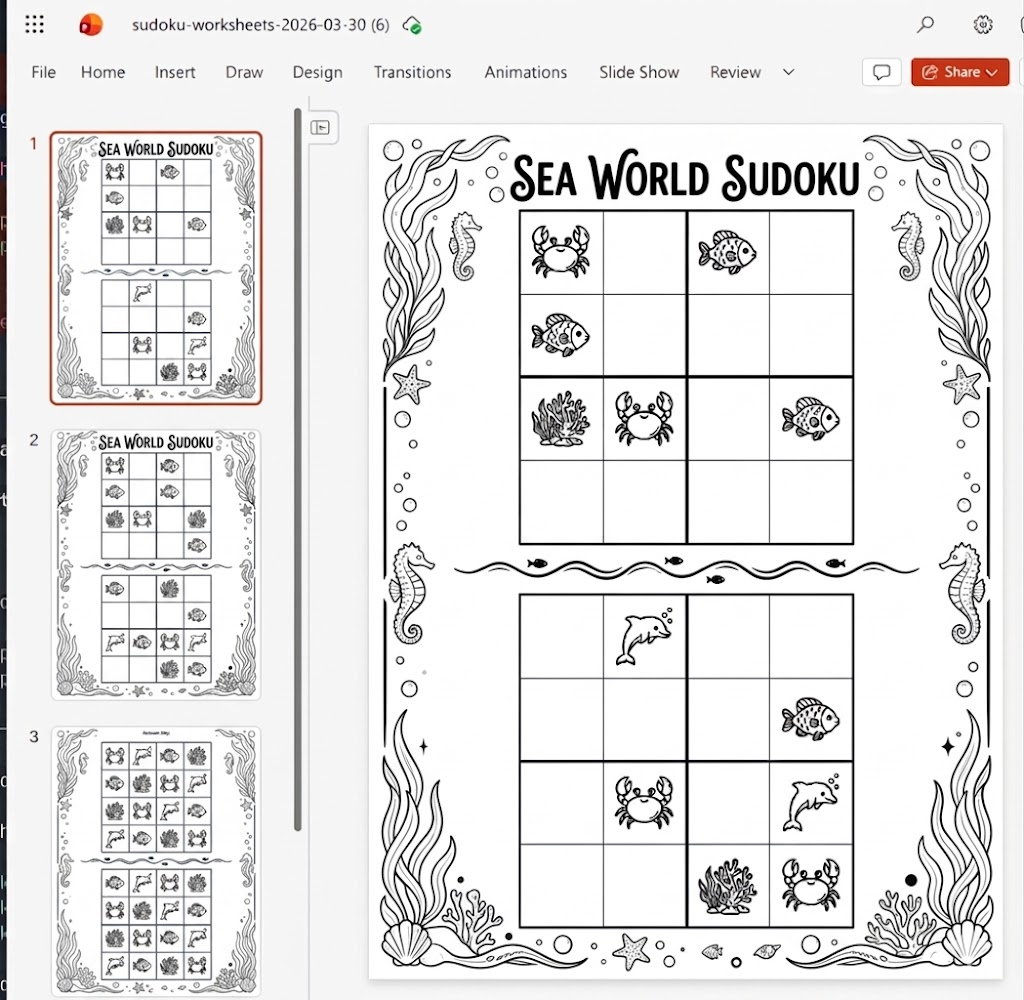
A finished sea world worksheet, after exporting from Sudoku Creator and adding the themed design in PowerPoint.
Step 1: Set up the puzzle
In the Puzzle Setup panel, start with these controls:
- Set Subgrid Rows to
2 - Set Subgrid Cols to
2 - Check that the grid hint says
4 × 4 grid - Set Difficulty to
Medium - Set Clues to
6
A 2 x 2 setup gives you a 4 × 4 Sudoku, which is much more beginner-friendly — good for a sea world activity aimed at younger students.
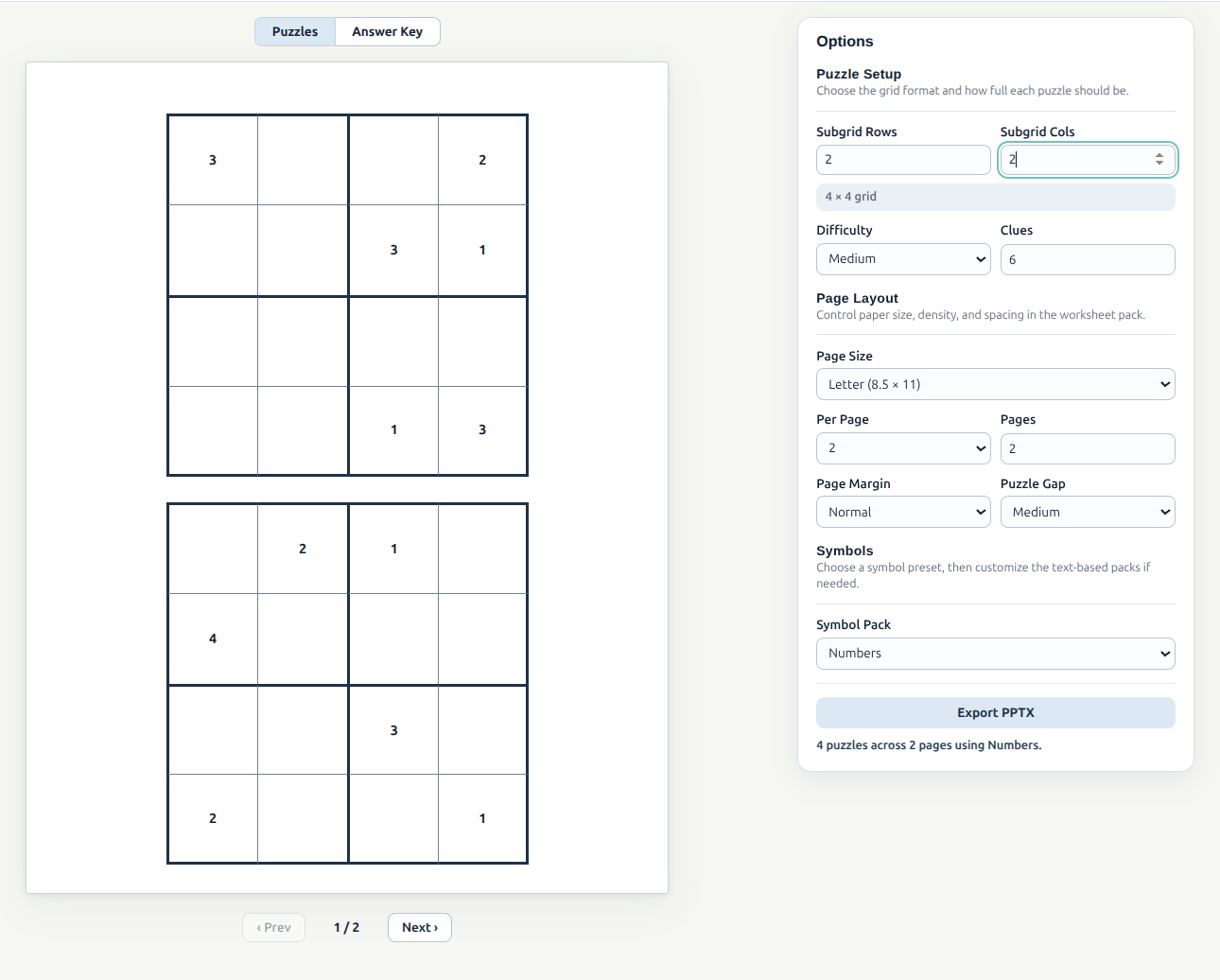
The starting setup: a 2 x 2 subgrid, which creates a 4 × 4 Sudoku with 6 clues.
Step 2: Set up the worksheet pages
Next, move to Page Layout. This controls how the worksheet pack is arranged. For example:
- Page Size:
Letter - Per Page:
2 - Pages:
2 - Page Margin:
Normal - Puzzle Gap:
Medium
That gives you 4 puzzles across 2 pages (the app generates Pages × Per Page puzzles) — a good small pack to start with.
Step 3: Choose the symbol style
This is where the pack stops looking like a standard Sudoku. Change Symbol Pack from Numbers to Images — the digits are swapped for sea world artwork, while the puzzle logic underneath stays the same.
Then in Image Symbols:
- Click Choose Files
- Upload
4images - Match one image to each value in the
4 × 4grid
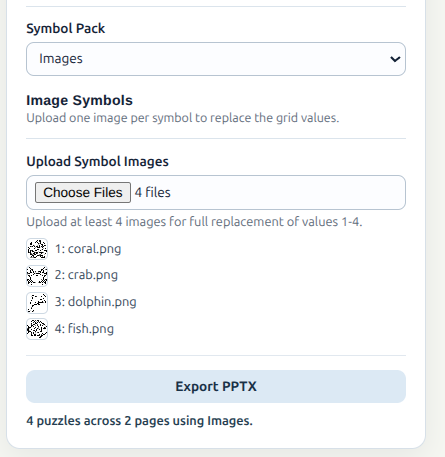
Switch Symbol Pack to Images, then upload the four sea world image files.
Step 4: Check the preview
As soon as the files are uploaded, the preview updates automatically. Before exporting, check:
- The puzzle density looks right
- The sea world symbols are clear and easy to tell apart
- The pack has the number of pages you want
Use the Puzzles and Answer Key buttons at the top of the preview to switch between the worksheet pages and the solutions. If your pack has more than one preview page, use Prev and Next to move through it.
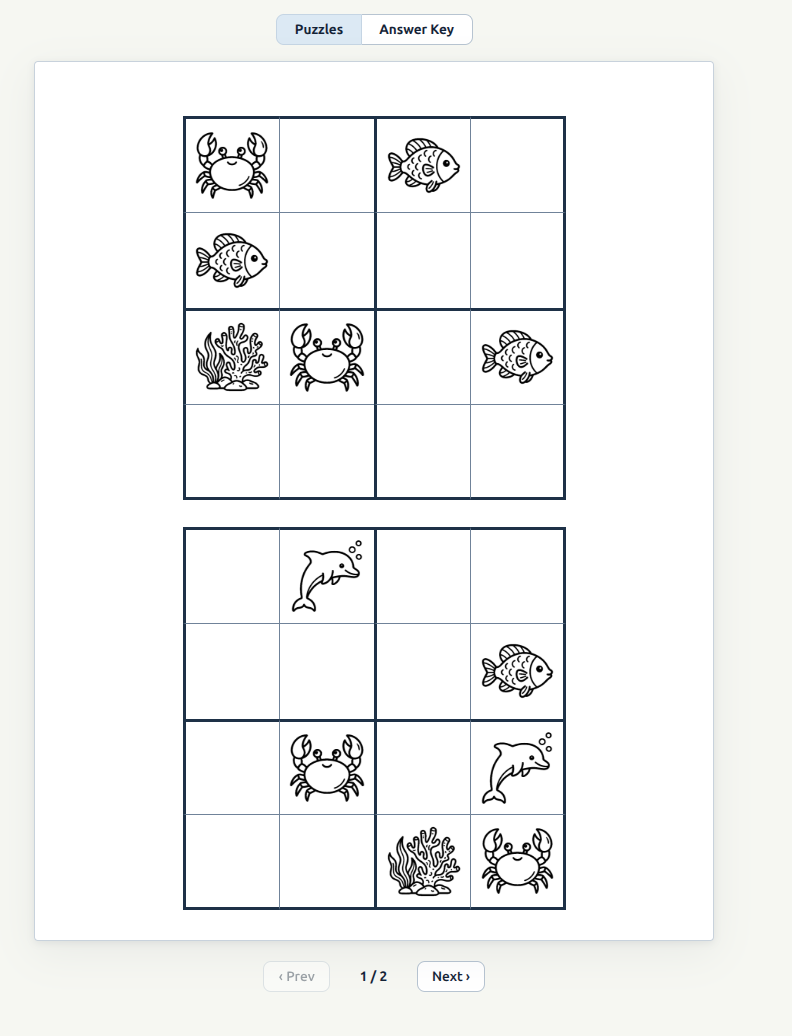
The preview showing the crab, coral, dolphin and fish symbols in the puzzle pages.
Step 5: Export the pack
When you are happy with the preview, click Export PPTX.
If you are still in demo mode, export will stay locked. In that case:
- Open the License tab
- Enter your license key
- Click Activate License
- Return to Workspace
- Click Export PPTX
The app exports a PowerPoint file with the worksheet pages first and then matching Answer Key pages after that.
Step 6: Customize the pack in PowerPoint
The Sudoku grids are already built, so PowerPoint is where you add the sea world theme around them. Good things to add at this stage:
- A cover page
- Ocean borders, bubbles, coral, seaweed
- A simple header or footer with student directions
- Page numbers and branding
One tip: keep the grid as the focal point. Sudoku depends on clarity, so keep the artwork in the margins, banners and corners, and leave the puzzle area clean and easy to read.
Recap
- Generate the puzzles in Sudoku Creator
- Check both Puzzles and Answer Key in the preview
- Export to PPTX
- Add the sea world design in PowerPoint
You get the speed of automatic Sudoku generation, plus the full freedom of PowerPoint for the finished look.