How to Create a Room-to-Room Maze Worksheet
If you want to build a maze worksheet with clear chambers instead of one big block of corridors, the easiest workflow is to start with a normal maze in Maze Creator, then turn selected areas into rooms directly on the canvas.
In this article, we start a new maze, choose a basic layout, size the grid, drag-select cells and turn them into Room areas. Then we export the maze and customise it in PowerPoint to get a finished themed worksheet.
Here is the printable pirate maze worksheet we are aiming for:
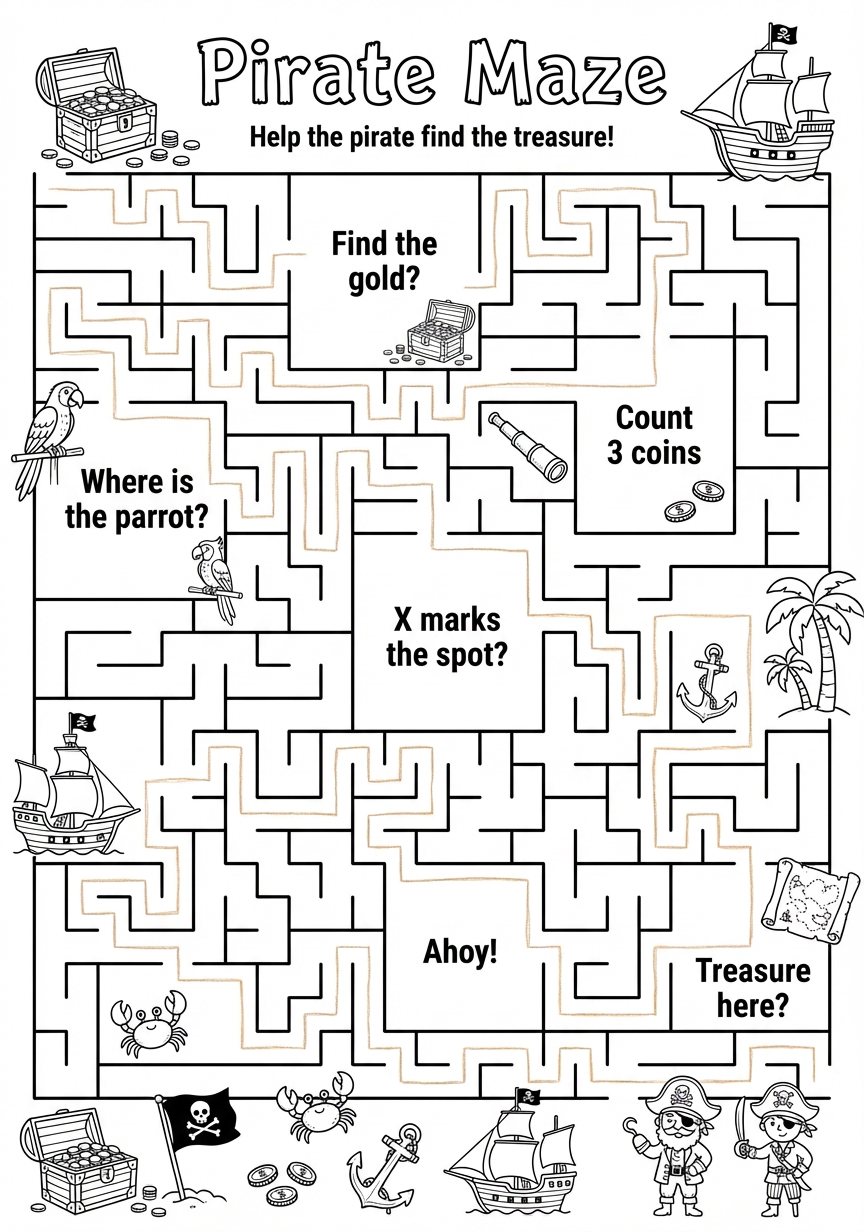
The finished pirate worksheet — a Maze Creator export, customised in PowerPoint.
Before you start: what Room, Empty, and Maze mean
In Maze Creator, every selected group of cells can be turned into one of three things:
- Maze means normal maze space. These cells behave like the usual maze and are used for corridors, branches, and dead ends.
- Empty means removed space. These cells are cut out of the maze completely, which is useful when you want blank areas or want to carve the shape.
- Room means an open chamber inside the maze. A room is made from a block of selected cells, and it creates a bigger destination area instead of a tight corridor.
The easiest way to think about it:
- Maze is for travel space
- Room is for destinations
- Empty is for space you do not want the maze to occupy

Start by creating a new maze.
Step 1: Create a new maze
Open My Mazes and click Create New Maze.
That takes you to the starter layout screen.
Step 2: Choose a simple starting layout
For this workflow, choose Classic Square.
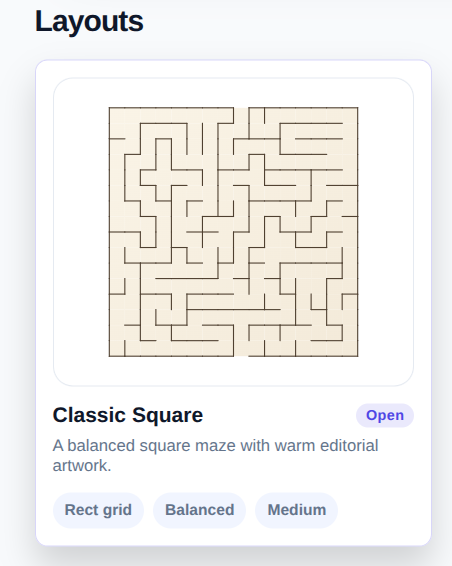
Classic Square is a good base — a clean rectangular maze that you can shape into rooms.
This is an ordinary rectangular maze to begin with. The room structure comes later when you paint selected areas as rooms.
Step 3: Set the grid size
In Grid & layout, set the maze dimensions.
In this example I used:
- Rows:
21 - Columns:
16
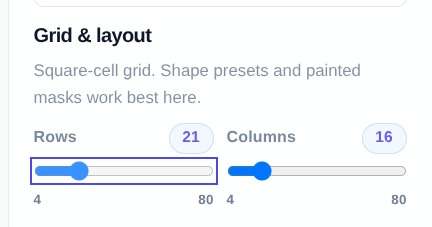
Set the maze size before you start painting rooms, so the canvas has the proportions you want.
Other controls available from the start
As soon as the editor opens, there are a few other controls worth knowing about.
You can drag the start and finish markers to different positions:
The start marker can be dragged to a different entry point.
The finish marker can be dragged to a different exit point.
You can also open Appearance to preview different themes, wall colours, room fill colours, and solution styles:
The Appearance tab lets you preview how the maze will look before export.
Useful options, but the main room-building step happens on the canvas itself.
Step 4: Create rooms directly on the canvas
This is the key step.
To create a room:
- Drag across the cells you want to change.
- Release the mouse to keep that block selected.
- Use the floating action that appears above the selection.
- Click Room.
This is the part many people miss. There is no separate room drawing panel — you create rooms by selecting cells on the maze itself, then choosing Room from the floating Maze / Empty / Room actions.
Drag-select a block of cells, then choose Room from the floating control.
The same floating control also lets you go back:
- Room makes an open chamber
- Maze turns the selected area back into normal maze space
- Empty removes that area from the maze
Repeat this anywhere on the canvas until the maze has the structure you want.
Step 5: Export the maze
When the room layout is ready, open Export.
Maze Creator lets you export:
- SVG
- PNG
- PPTX
Each format can be downloaded as:
- Maze only
- + Solution
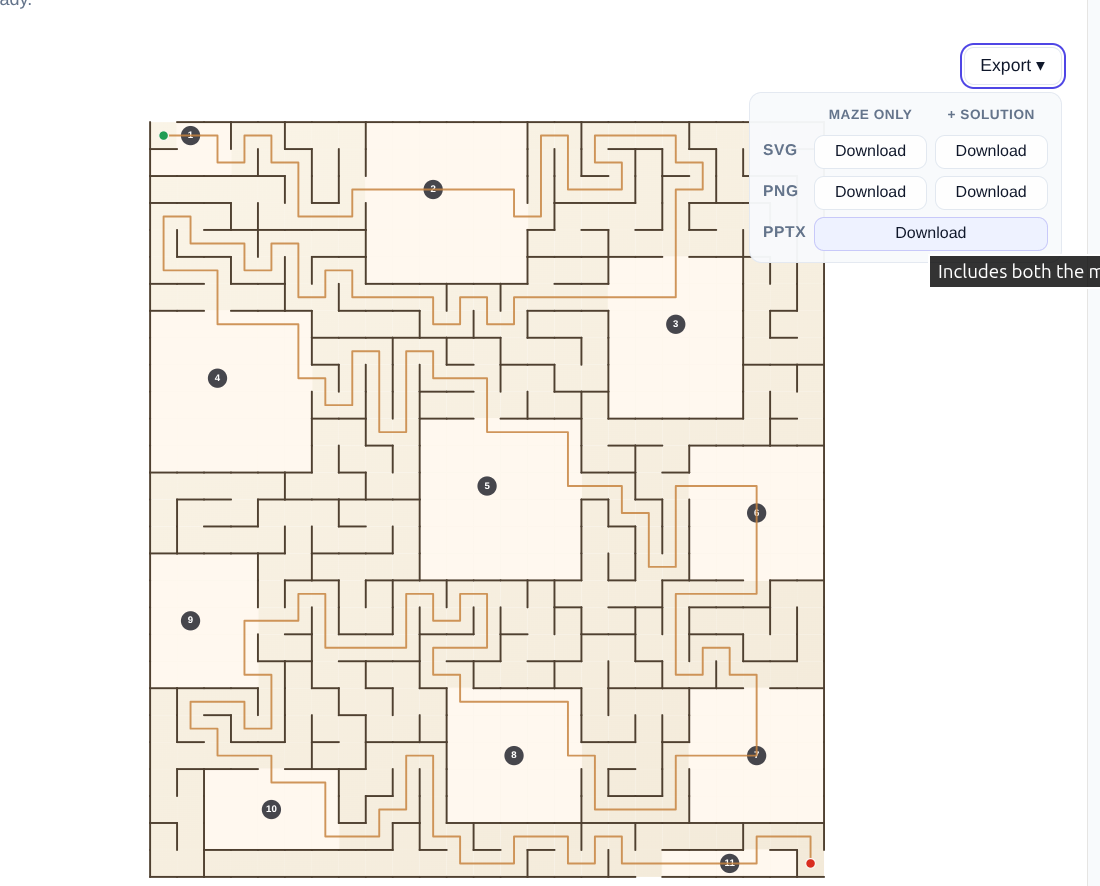
Export the finished room-based maze as SVG, PNG, or PPTX, with or without the solution.
If you want to finish the design in PowerPoint, PPTX is usually the easiest option. You get a clean maze base to decorate with your own titles, pirate clipart, prompts and any other worksheet styling.
Recap
- Click Create New Maze
- Open Classic Square
- Set the grid size
- Move the start and finish points if you want to
- Drag-select cells on the canvas and use Room, Empty, or Maze to define each area
- Export the finished maze
- Customise it in PowerPoint for a finished themed worksheet
Send me an e-mail if you create something fun with this — I’d love to see it.